How to Create a Robert Langdon Last Supper Scene
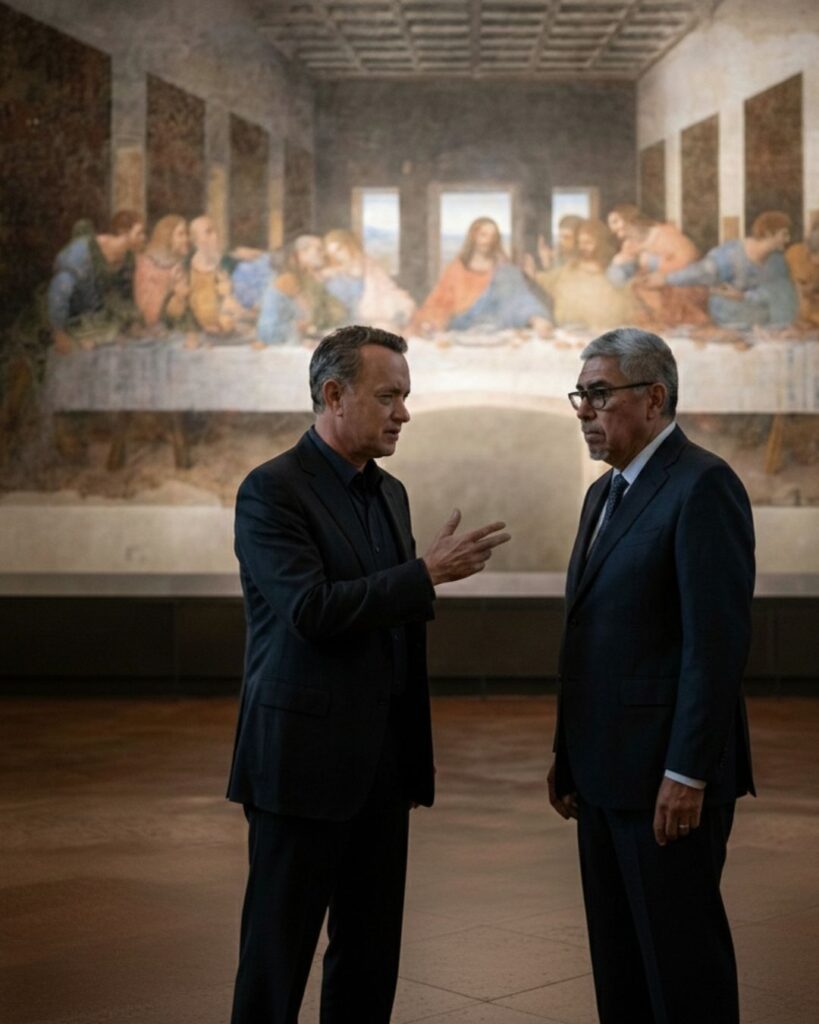
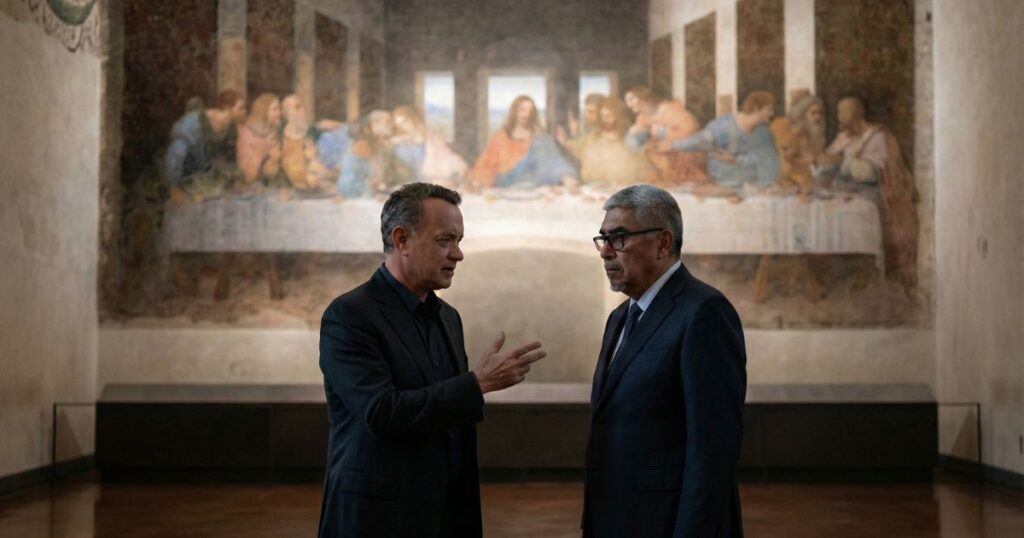
The Robert Langdon Last Supper scene makes a strong subject for AI image creation. The setting brings together Tom Hanks, The Last Supper, and the rich mood of Leonardo da Vinci. Many creators enjoy this mix because each detail adds story and depth. You can build the same scene with Google Gemini and a clear prompt. This guide shows each step in simple order.
Step 1: Copy the Prompt for Robert Langdon Last Supper Scene
Prompt to copy and paste:
Create an ultra-realistic, high-detail cinematic scene featuring Robert Langdon (Tom Hanks) standing inside the refectory of Santa Maria delle Grazie, positioned directly in front of Leonardo da Vinci’s The Last Supper. Langdon is engaged in an intense, focused discussion with an unidentified man (from the attached photo) wearing a dark, tailored suit.
Depict the space with authentic architectural accuracy—aged stone walls, high ceilings, and the iconic fresco dominating the background. Use soft, diffused museum lighting that washes gently across the room, revealing the texture, cracks, and brushwork of the fresco. Add subtle reflections on the polished stone floor, faint environmental shadows, and atmospheric depth that gives the scene a dramatic but scholarly tension.
Capture the two men in the foreground, framed with natural separation from the background through shallow depth of field, while still keeping The Last Supper legible and imposing. Emphasize mystery, symbolism, intellectual intrigue, and historical gravity. Maintain lifelike skin texture, realistic fabric folds, and cinematic color grading suitable for a historical thriller.
Camera: Canon EOS R5 with RF 50mm f/1.2L
Settings: f/2.0, 1/250s, ISO 100
Aspect Ratio: 3:2
Style: Cinematic realism, studio-grade clarity, 8K ultra-detail
Mood: Serious, analytical, atmospheric
Or you can just click on the COPY button below:
Step 2: Open Google Gemini
Open Google Gemini on your computer or phone. Make sure your account signs in so you can upload files and run image tasks.
Step 3: Upload a Photo
Upload the photo of the man who will stand beside Robert Langdon. This helps Gemini match the face and suit in the prompt. The historical intrigue of the scene grows when the model reads a clear reference image.
Step 4: Paste the Prompt
Paste the full prompt into the text box. Keep all the camera settings like Canon EOS R5, RF 50mm, and ISO values. These details help Gemini build sharp lines and clean lighting. They also keep the scene close to a real film still. The mix of cinematic realism, museum lighting, and fresco texture guides the model toward a clear result.
Step 5: Wait for Gemini to Generate the Image
Gemini reads the prompt and the photo. It builds the mystery scene with strong symbolism, sharp edges, and high detail. The model presents the 8K image in a short time. Check the floor reflections, the background art, and the faces. Each part should match your vision for the Robert Langdon Last Supper scene.
Closing Thoughts
The final image carries a strong tone and clear story. The blend of Santa Maria delle Grazie, the characters, and dramatic lighting gives life to the scene. Use the image for study, art posts, or film-style projects. You can adjust the prompt to shape new versions of the Robert Langdon Last Supper scene based on your style.
AI Image Prompts | Google Gemini Creations