Step-by-Step Guide to Making GTA San Andreas Cover Art
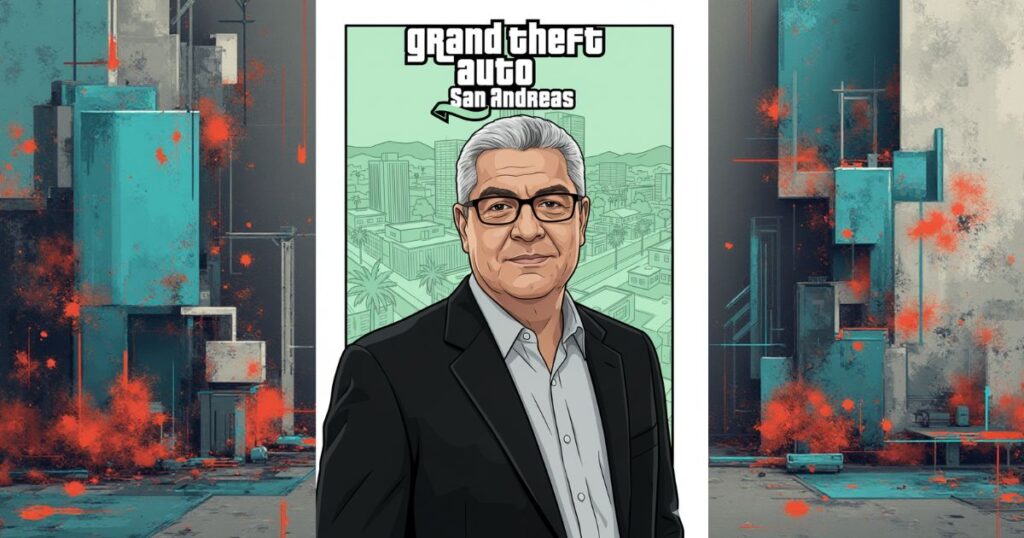
A cover inspired by GTA San Andreas cover art is fun to make. The style uses bold lines, clear shapes, and strong colors. It works well with a portrait and it gives the image a sharp look. This guide shows each step in simple terms so you can create your own GTA-themed picture with Google Gemini.
Step 1: Copy the Prompt for GTA San Andreas Cover Art
Prompt to copy:
Create artwork in the style of the Grand Theft Auto: San Andreas video game cover.
Use the man from the uploaded photo as the main character. Recreate him with a confident smile, wearing a black blazer over a gray shirt, and give him a subtle mafia-style attitude.Render the character using bold, thick vector outlines, flat shading, and the signature GTA San Andreas illustration style.
Design the background as a mint-green cityscape divided into two vertical comic-panel strips, matching the layout often seen in San Andreas promotional art.
In the foreground, add the text:
“Grand Theft Auto”
Use the official GTA font style, in white with a black stroke, positioned prominently like game cover art.
Make sure the overall style matches the iconic GTA San Andreas cover aesthetic: stylized vector art, heavy outlines, clean shading, bold composition, and dynamic urban feel.
Or you can just click on the COPY button below:
Step 2: Open Google Gemini
Open Google Gemini in your browser. The tool loads fast and gives clear options on the main screen. You can work on many ideas here, but today you will create a strong GTA San Andreas cover art look.
Step 3: Upload Your Photo
Click the upload button and choose the photo you want to use. Pick a clear portrait with good light. This helps Gemini draw sharp features and clean shapes. A clear face looks great with vector thick line art. It also helps create a strong mafia style portrait that fits the theme.
Step 4: Paste the Prompt
Paste the prompt into the text box. The prompt gives clear detail. It shapes the video game art style and helps Gemini build the scene. It tells Gemini to use a mint green cityscape, a comic panel background, and the bold Grand Theft Auto font. These parts create the full GTA cover art look. They match the tone of GTA San Andreas style work. The result keeps the sharp lines and thick shadows that fans like. It also builds strong character illustration features that fit GTA artwork design rules.
Step 5: Wait for Gemini to Generate the Image
Gemini starts drawing as soon as you send the prompt. The tool builds the shapes, colors, and outlines. It forms the city panels, draws the face, and adds the vector style. Soon you see a full GTA San Andreas cover art image on your screen.
GTA San Andreas Cover Art Final Thoughts
A project like this feels simple but fun. You guide the tool with clear detail and get strong art in return. The final image shows the bold colors and sharp lines you expect from GTA San Andreas cover art. It is a good way to turn a normal photo into a striking piece of digital art.